Keep a trip together
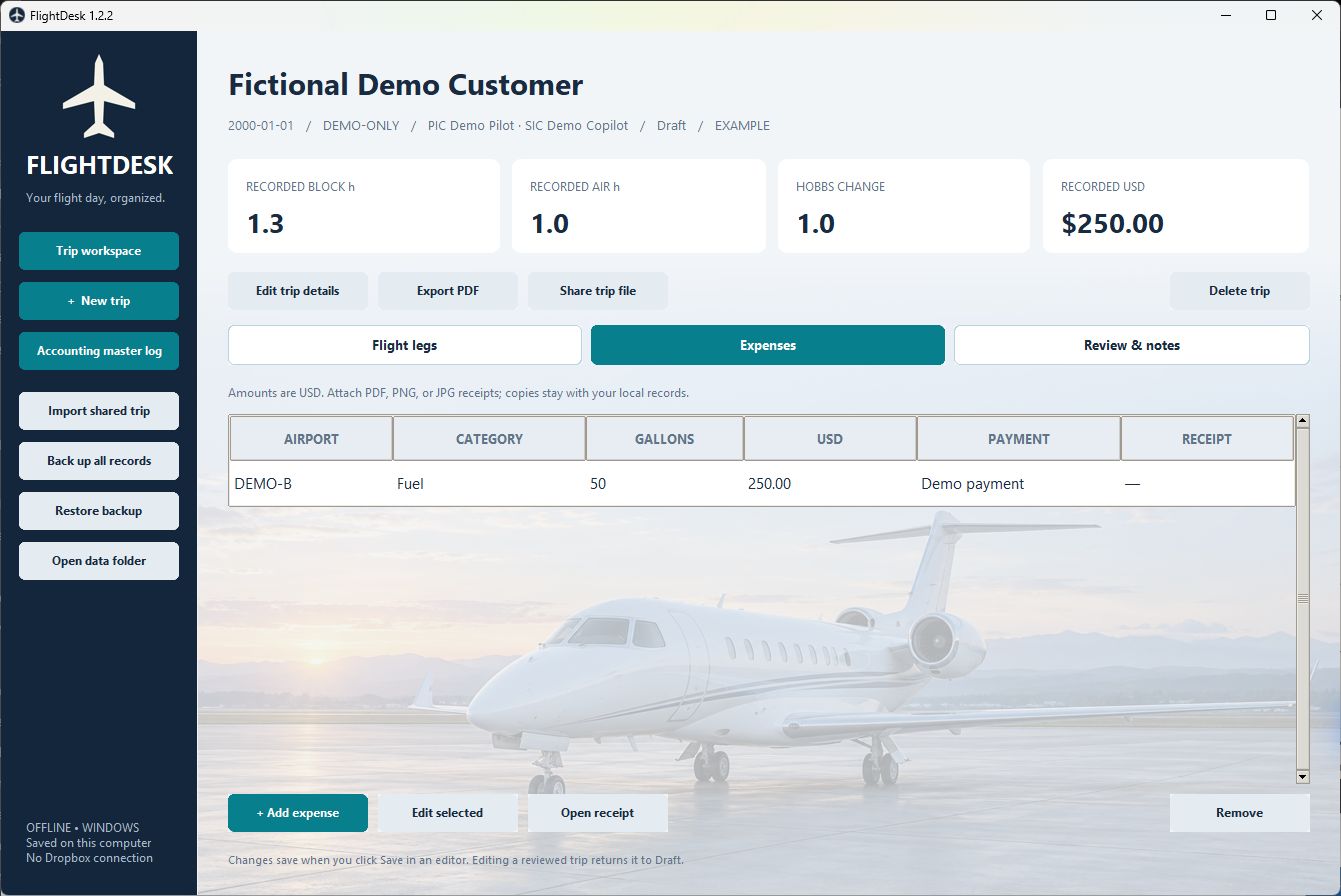
Enter flight legs, expenses and receipts in the manual trip workspace. Draft, Submitted and Reviewed are local status labels, not signatures or notifications.
Trips & accounting FlightDesk
An offline Windows workspace for flight legs, expenses, and receipts. Prepare PDF trip reports, with a separate accounting ledger for supported Excel flight logs.
See how it worksA tool for your work
For people organizing trip details and accounting records on a Windows computer. Share files when needed; each person keeps a separate local copy.
What you can do
Enter flight legs, expenses and receipts in the manual trip workspace. Draft, Submitted and Reviewed are local status labels, not signatures or notifications.
Add PDF, PNG or JPG receipts up to 20 MB each, then produce a PDF trip report. Review recorded hours, units, currency and totals before sharing.
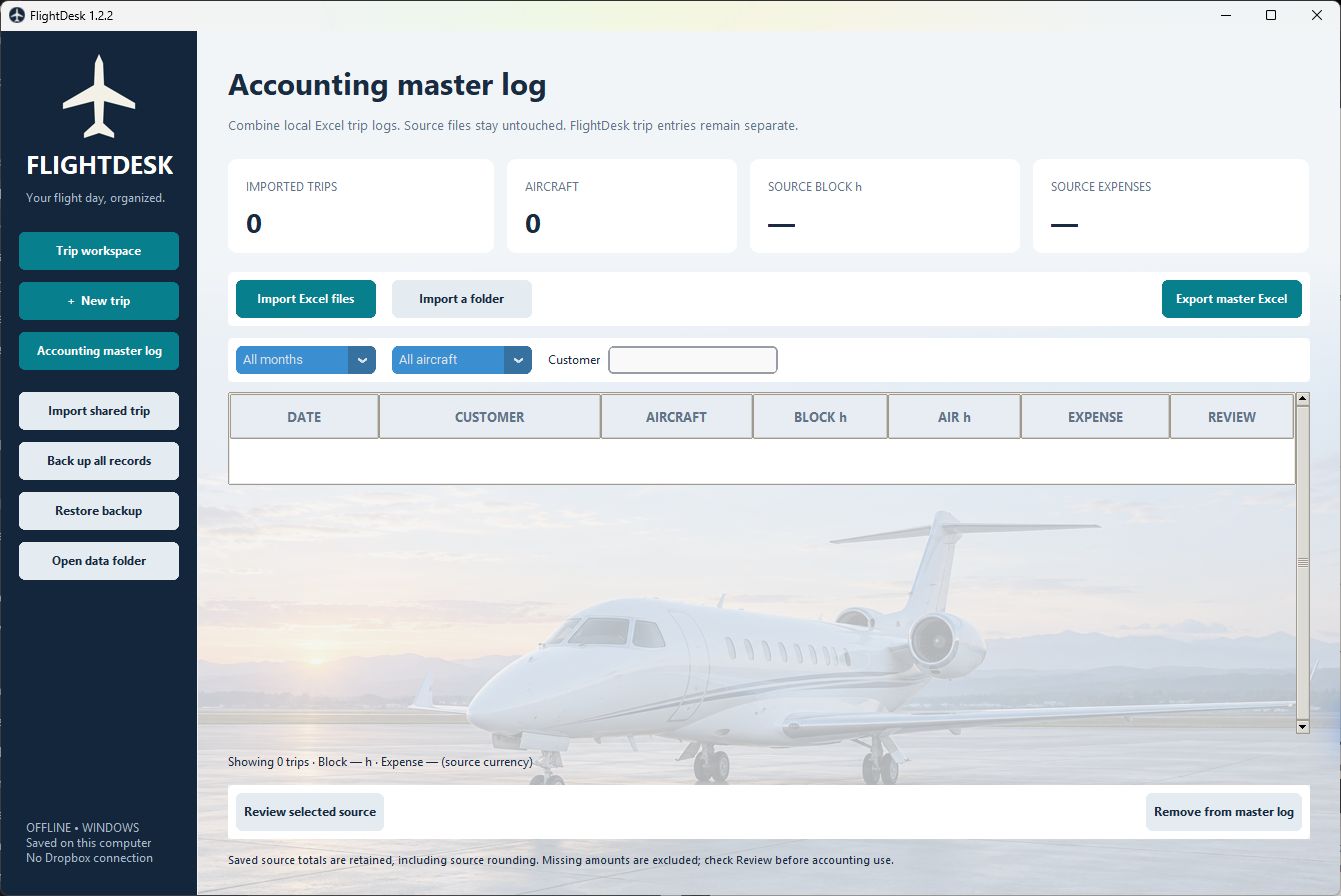
Import supported .xlsx files or folders recursively. Review candidates: exact or renamed duplicates are skipped; possible revisions require an explicit replace-or-keep-separate choice.
Filter by month, aircraft or customer. Export a master workbook with Summary, Trips, Flight legs, Expenses and Review sheets. This export includes imported records only, never manually entered trips.
A .flightdesk file carries a trip and its receipts. Importing it creates a new draft copy; it does not merge changes or synchronize records.
Use Back up all records, restore with a safety backup and recover deleted records. Source workbooks and externally referenced receipts are not included in backups.
Inside the application
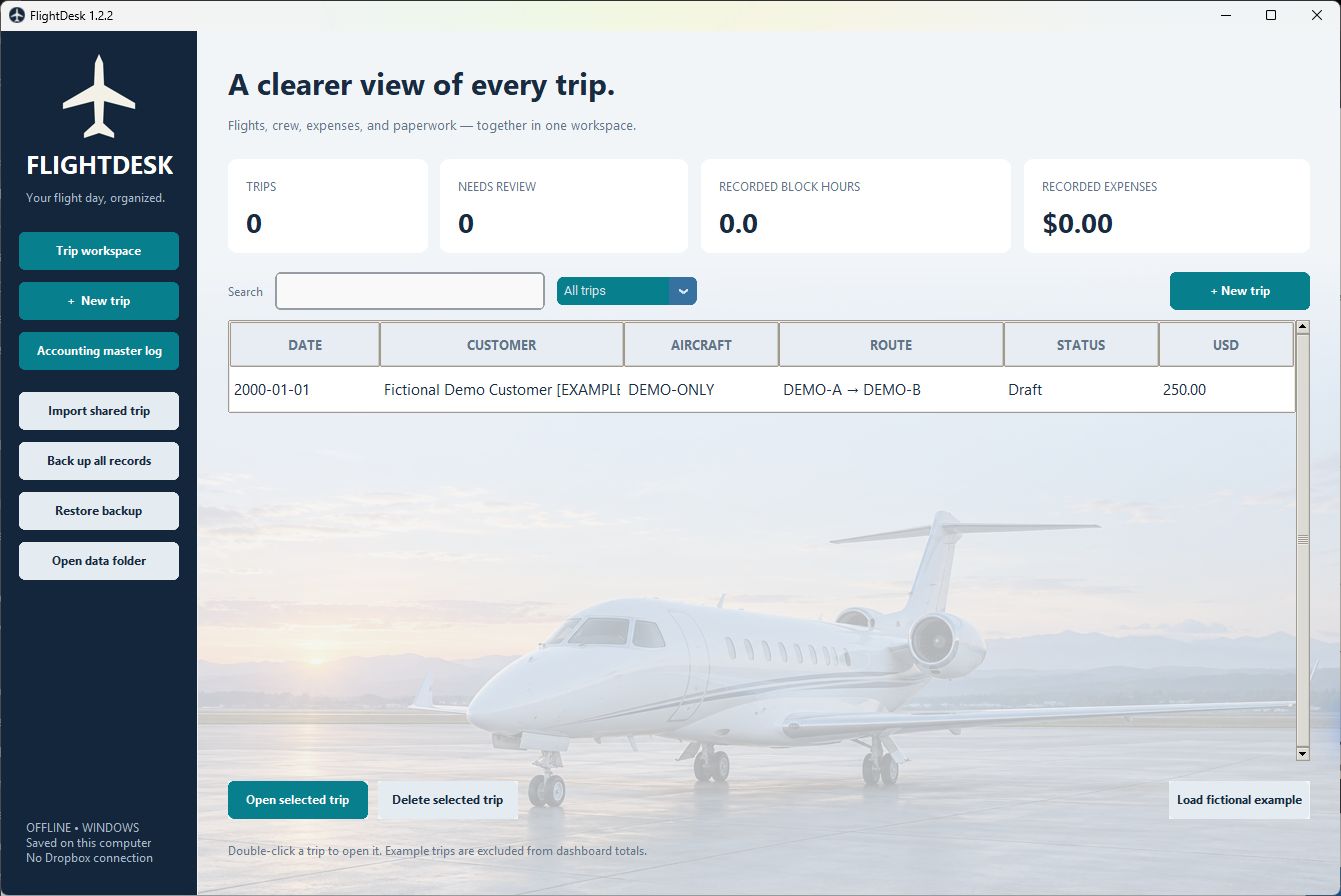
Real screenshots.
Sanitized demonstration data.
 Open full-size image
 Open full-size image
 Open full-size image
The workflow
Extract the ZIP and open FlightDesk.exe. Read the included README, then create a trip or explore the built-in fictional example; example records are excluded from dashboard totals.
Add legs, expenses and receipts. Review the details, export a PDF report or share a .flightdesk copy. The recipient gets a separate draft.
Select supported Excel logs, review duplicates and revisions, filter the imported ledger and export a master workbook. Manually entered trips are not part of this workbook.
Before you start
The manual trip workspace and imported accounting ledger are separate. Imported records are read-only, and master Excel exports contain imported records only. There is no live multi-user sync, cloud collaboration, regulatory validation or immutable audit trail. Shared trip files create separate draft copies. Review currency and fuel units, and keep source workbooks and external receipts backed up separately.